Kitchen Display System instead of paper tickets — how it works in a restaurant
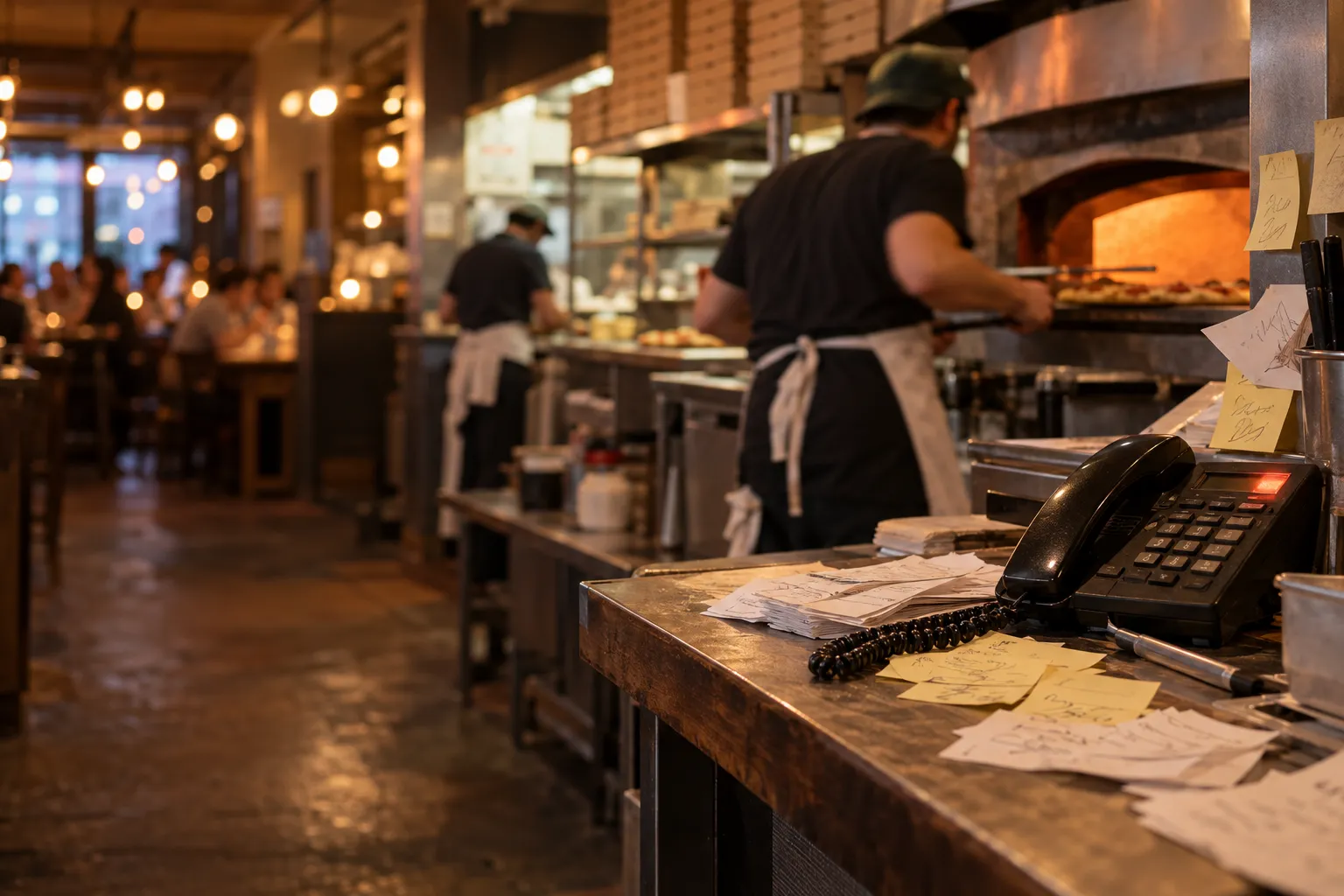
For years, paper tickets have been one of the simplest ways to pass orders from the dining area to the kitchen. A waiter takes an order, the printer produces a ticket, and the kitchen prepares the dishes in sequence. Problems start when a dozen or more orders arrive within a short period, together with customer notes, allergen information, delivery and collection orders, dine-in orders, and dishes that are only meant to be prepared later.
At that point, paper is no longer just a simple tool. It can become another thing the kitchen has to organise manually. A Kitchen Display System moves the same information onto a tablet or screen and allows the team to work from one continuously updated order queue.
What is a Kitchen Display System?
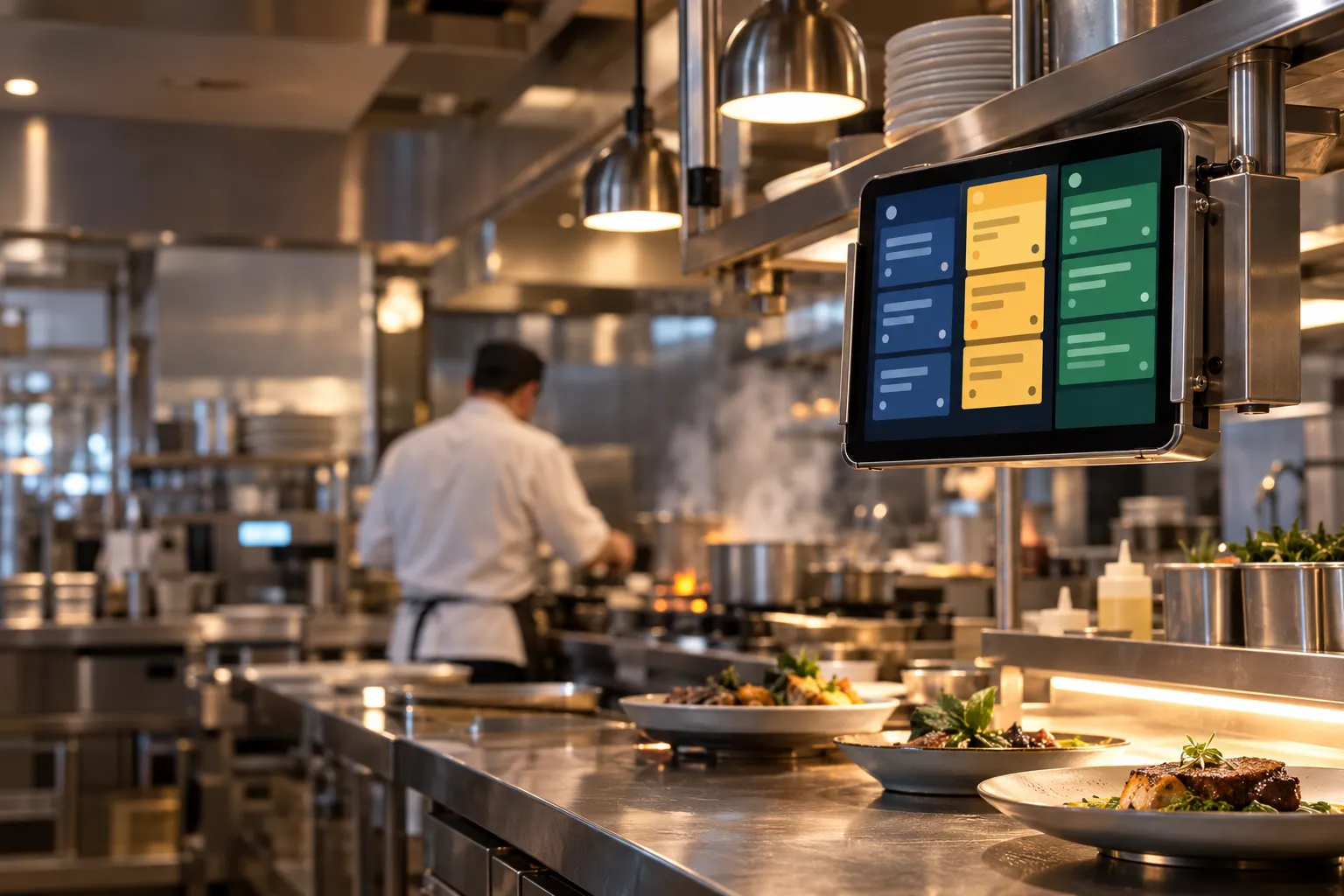
A KDS, or Kitchen Display System, is a screen used by the kitchen to receive and manage orders. Instead of printing one ticket after another, the system displays orders as clear cards. The kitchen can see what needs to be prepared, in what order, and what stage each order has reached.
In a basic setup, an order may move through several statuses, for example:
- New — the order has just reached the kitchen,
- In preparation — the kitchen has started working on it,
- Ready to serve — all items are prepared and the order can be passed to the customer or the pass.
The main change is therefore not simply replacing a piece of paper with a screen. The kitchen works from one queue, while order statuses can be updated without moving tickets around, adding handwritten notes or searching for the right piece of paper.
What changes with a KDS during the busiest service?
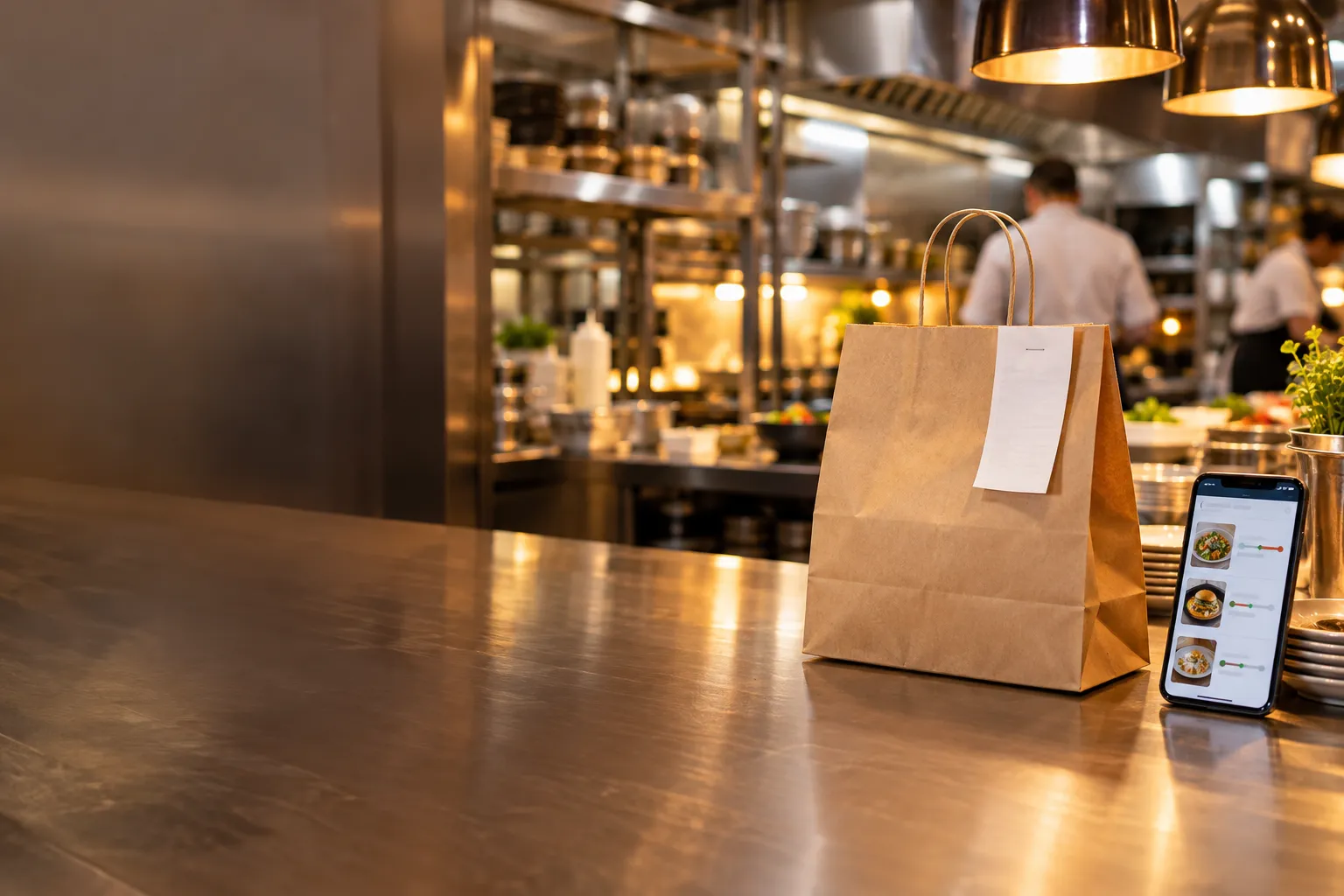
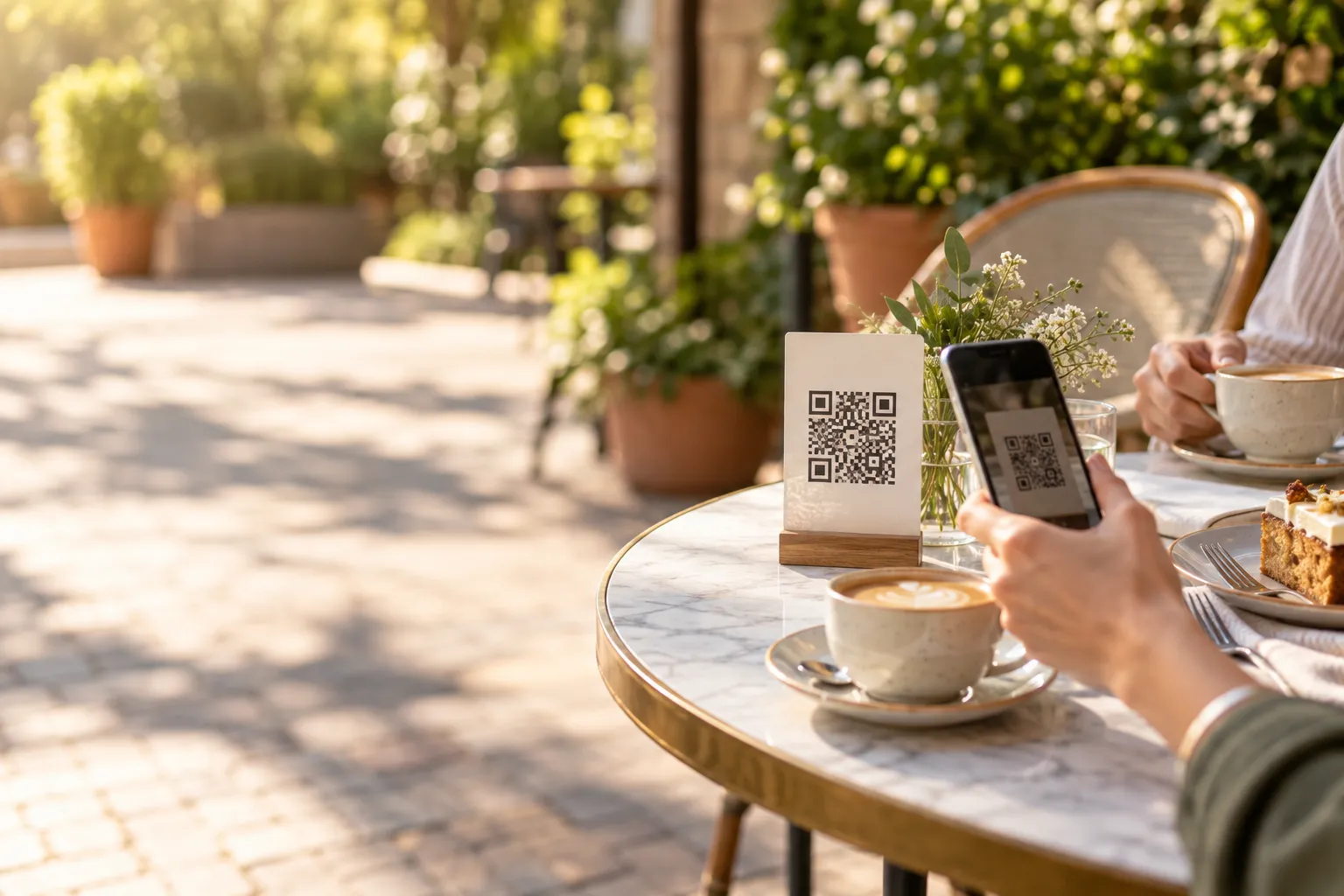
The biggest difference becomes visible when the restaurant is working under time pressure. Imagine Friday at 19:00. Several tables are occupied, someone places a collection order, another order arrives through the restaurant website, and a guest at one of the tables orders using a QR code.
With paper tickets, every additional order means another piece of paper. Staff have to keep track of the sequence, separate orders that need to be prepared now from those scheduled for later, and make sure no ticket is covered, stained or accidentally moved.
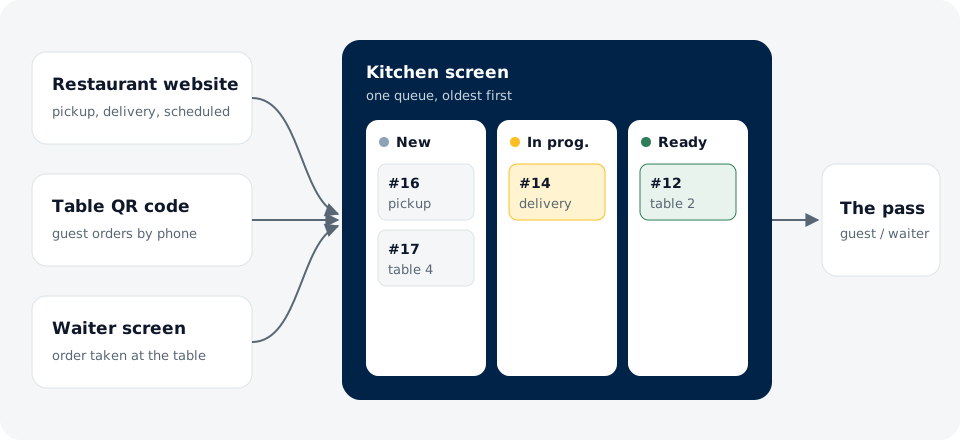
On a kitchen screen, all orders can appear in one queue. The oldest orders are shown at the top, so the chef does not have to decide manually which ticket should be handled next.
Less manual order sorting
In a paper-based system, order sequence is often physical. Tickets hang on a rail, lie next to a workstation or are moved around by the kitchen team. During a busy service, even a small change, such as an order scheduled for an hour later, requires someone to deliberately put the ticket aside in the right place.
A KDS can separate current orders from those scheduled for later. This means an order planned for 20:30 does not have to sit between orders the kitchen is preparing right now.
Clearer notes and allergen information
On a paper ticket, information about an allergy, ingredient change or additional request can be lost among other items. In a digital system, this information can be shown directly next to the relevant order or menu item.
This does not remove the need for staff to follow proper allergen and food safety procedures. The screen is a tool for passing on information, not a substitute for good kitchen organisation.
Paper tickets vs a kitchen display — comparison
| Area | Paper ticket | Kitchen Display System |
|---|---|---|
| Passing the order to the kitchen | Printed ticket or handwritten note | The order appears on the screen |
| Order sequence | Determined by the physical arrangement of tickets and by staff | Orders can be arranged by time |
| Order status | Usually requires moving or marking the ticket | The order stage can be changed on screen |
| Orders for later | They have to be set aside manually and remembered at the right time | They can be shown as scheduled orders |
| Allergens and notes | Depend on print clarity and ticket layout | They can be displayed directly with the order |
| Out-of-stock product | The information has to be passed between staff members | An unavailable product can be marked in the system |
| Consumables | Requires printer paper | Requires a device with a screen |
| Failure or loss of internet connection | Paper works independently of the network | Depends on the solution and how the system operates |
Kitchen stations help with larger menus
In a small restaurant, one screen may be enough. If the kitchen is divided into several stations, however, the situation is different. Pizza may be prepared in one part of the kitchen, hot dishes in another, and desserts or drinks somewhere else.
In this setup, a KDS can help organise the workflow by station. Instead of passing one ticket between several people, each station can work with the information relevant to it.
For example, an order includes a pizza, a salad and a dessert. The individual items may require work from several people, but in the end the whole order should reach the pass as one complete order. A digital order status makes it easier to check whether everything is ready.
Out-of-stock products — information should reach the team quickly
One of the most problematic situations during service is when the kitchen discovers that a product is no longer available, while the waiter can still sell it. As a result, the order is accepted and reaches the kitchen, and only then does the team have to discuss an alternative with the customer.
A kitchen display can make it easier to communicate that a product is unavailable. A clear team procedure is still needed: who marks the product as unavailable, who can make the dish available again, and how quickly front-of-house staff should be informed.
Technology does not remove the need for clear procedures. It can, however, ensure that the information does not depend entirely on whether someone has managed to tell every waiter about the shortage.
How can you introduce a KDS without disrupting the kitchen?
Implementation does not have to mean removing every printer one day, throwing away the paper and telling the team to work only from tablets. A gradual transition to the new way of working is safer.
1. Start with one device
You do not always need specialist equipment to use a KDS. In many cases, a tablet placed where the kitchen team can clearly see it is enough. Its position is more important than the device itself.
The screen should be:
- visible to the people preparing orders,
- positioned so that it does not get in the way of work,
- protected against accidental spills or damage,
- connected to power or charged regularly.
2. Decide who changes the order status
If nobody is responsible for changing the status from “New” to “In preparation” and then to “Ready to serve”, the screen will stop reflecting the real situation after only a few minutes.
In a small kitchen, this may be handled by the person leading the shift. In a larger operation, it is worth setting clear rules for individual stations or for the pass.
3. Test both typical and unusual situations
Do not test only a simple order containing one dish. Also test:
- an order containing several dishes,
- an order with a note added to an item,
- an order containing allergen information,
- an order scheduled for a later time,
- a situation where one product is unavailable,
- several orders accepted one after another.
A useful test is to simulate a real busy period. Have several orders arrive from different sources within a few minutes. This makes it easy to see whether the screen is positioned correctly and whether the team understands the order workflow.
What happens if the internet connection drops temporarily?
This is one of the first questions worth asking before moving from paper tickets to a screen. Paper does not need a network connection, which makes it very resilient to technical problems. A digital system, on the other hand, requires a clear procedure for internet or device failures.
In Ranedo, the kitchen display in the Plus and Pro plans can continue working with the most recently available data during a temporary internet outage. However, this should not be treated as a complete replacement for a network connection. The restaurant should still have a simple fallback procedure: who checks the connection, how new orders are handled, and when the team should temporarily return to paper or manual order communication.
What does the kitchen display look like in Ranedo?
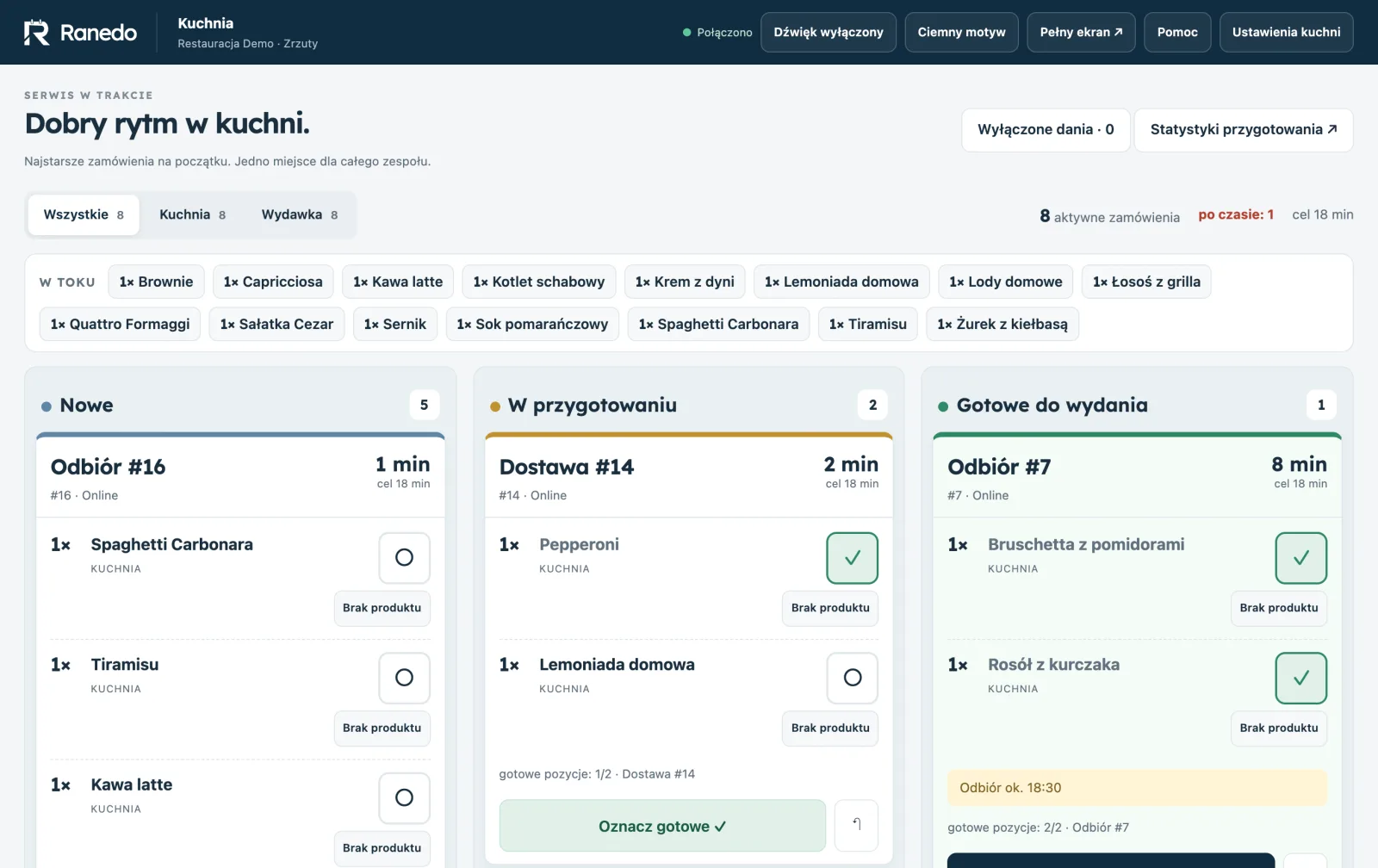
In Ranedo, the Kitchen Display System is available in the Plus and Pro plans. It can run on a tablet that is paired with the system using a code, without requiring a standard user login.
Orders are divided into New, In preparation and Ready to serve columns, with the oldest orders shown at the top. The screen displays allergens and notes for individual items, separates orders scheduled for later and includes a dark mode for use in lower light.
Two features are particularly useful for reducing the team's workload during busy service:
- Stations — you assign dish categories to stations, such as grill, cold kitchen or bar, so each station sees only its own items while the pass sees the complete order.
- “Out of stock” — when an ingredient runs out, the chef taps “Out of stock” next to the item and disables the dish. It immediately disappears from waiter ordering, the QR menu and the restaurant website, and can be restored with one button once stock is replenished.
Another important point is that orders accepted through different channels can enter the same service workflow. Orders from the restaurant website, QR orders placed at the table and orders entered by a waiter all reach the same kitchen display and use the same short order number. This means the kitchen does not have to recognise separate numbering systems depending on where the order originated.
If you are also interested in front-of-house operations, see the article waiter app on a phone instead of a notepad. For self-service ordering, it is also worth reading how QR code table ordering works.
You can also find more about organising front-of-house and kitchen operations in the how Ranedo works section.
When do paper tickets still make sense?
A KDS is not something every restaurant has to introduce regardless of its size. Paper can still work well in a small venue with a short menu, one source of orders and only a small number of orders being handled at the same time.
For example, if a restaurant mainly takes orders at the counter, the kitchen is only a few metres away and one person prepares every item, a printed ticket may be sufficient.
Paper can also serve as a fallback procedure. Even after introducing a KDS, it is worth knowing what to do if the tablet fails, there is a power problem or the system is unavailable for a longer period.
A KDS becomes more useful as the number of sales channels, orders and people involved in food preparation increases. If the kitchen regularly sorts tickets, looks for missing pieces of paper, passes them between stations or has to track scheduled orders separately, a screen can help organise these tasks.
A KDS will not fix poor organisation
A tablet on its own will not solve kitchen problems if there are no clear procedures. If staff do not know who is responsible for starting an order, who closes it and who checks the pass, a digital screen will simply show the same confusion in another format.
Before implementation, it is therefore worth answering a few simple questions:
- Who takes responsibility for a new order?
- When do we change its status to “In preparation”?
- Who marks the order as ready?
- How do we handle orders scheduled for a specific time?
- What do we do when a product is unavailable?
- What is the procedure if there are problems with the internet connection or device?
If these rules are clear, the KDS becomes a tool that supports the existing process instead of simply becoming another screen that staff have to manage.
See the kitchen display in practice
In Ranedo, the kitchen display is available in the Plus and Pro plans together with front-of-house management, the waiter app, QR ordering and other features related to restaurant operations. You can view the available plans or create an account and use the free first month with all features included in your selected plan.
Frequently asked questions
Does a KDS completely replace a kitchen ticket printer?
It can take over the main role of passing orders to the kitchen, but many restaurants keep a simple paper-based procedure for emergencies. The decision depends on how the individual restaurant is organised.
Can the kitchen display run on a standard tablet?
With Ranedo, the KDS can run on a tablet. The device is paired with the system using a code, without requiring a standard login.
Are waiter and online orders shown together?
In Ranedo, orders from the restaurant website, QR orders and orders entered by a waiter all reach the same kitchen display and use the same short order number.
What happens to an order scheduled for later?
The Ranedo KDS supports scheduled orders, allowing the kitchen to distinguish them from orders that need to be prepared at the current time.
Does a KDS make sense in a very small restaurant?
Not always. If you only handle a small number of orders, have one station and use a simple service model, paper may be sufficient. A KDS is particularly useful as the number of orders, sales channels and people involved in fulfilment increases.
Share this article: