Technology
A waiter with a phone instead of a notepad — how mobile service works
A waiter with a phone can take orders at the table, add notes and split the check. See how mobile dining room service works.
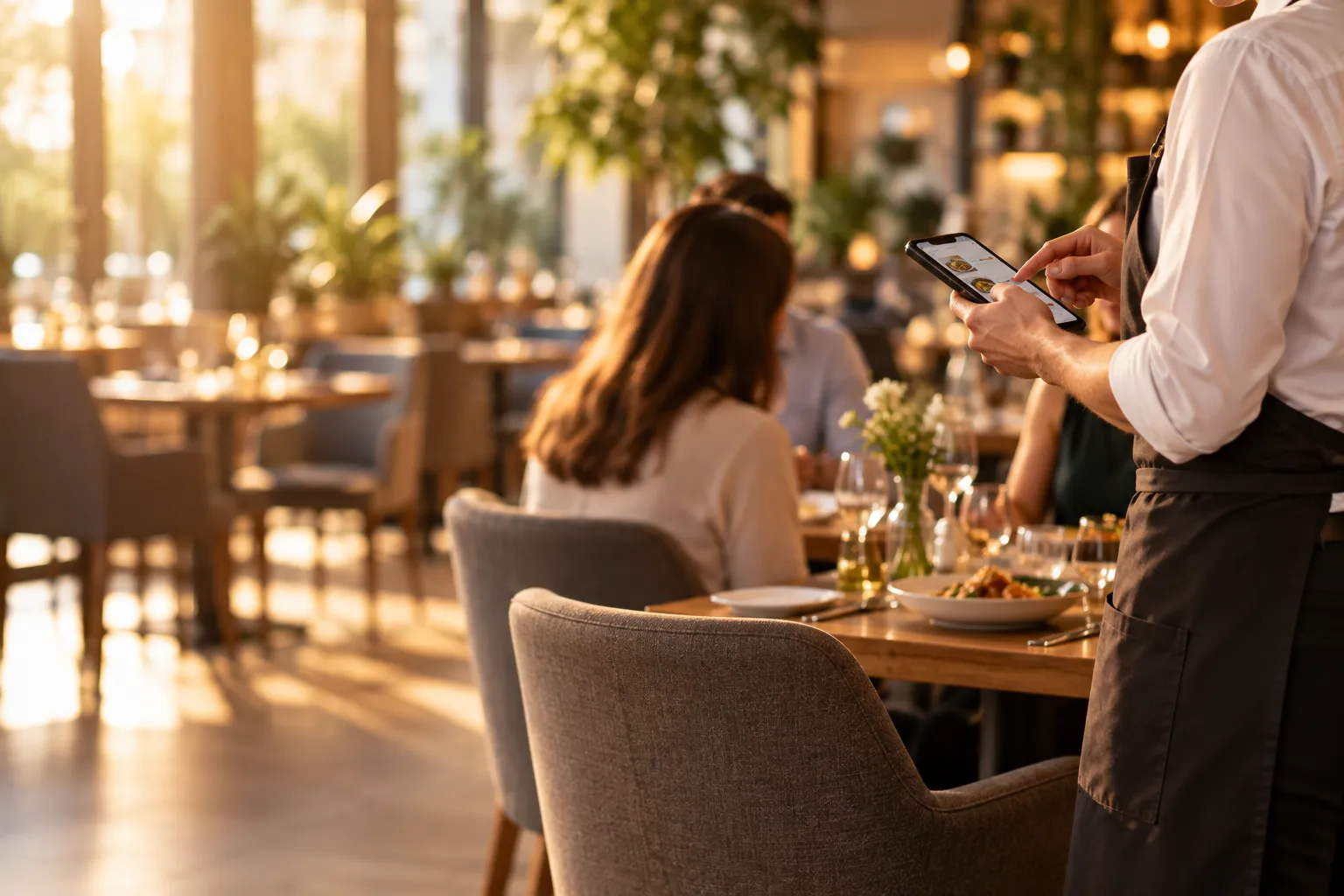
A waiter's notepad is simple, cheap and needs no training on a system. The problem starts when, after writing down the order, the waiter still has to walk to the register or a terminal, retype every item, pass the notes on to the kitchen and later remember which check belongs to which table.
On a quiet Tuesday, working this way may be enough. On a Saturday evening, when one person serves several tables, guests switch seats, someone asks to split the check and one dish needs "no onions," the number of manual steps starts to matter.
A phone or tablet won't replace good service. But it can let a waiter take the order right at the table and pass it on without retyping it.
The problem isn't the notepad, it's retyping information
Writing the order on paper doesn't have to be a problem. The biggest risk appears between the moment the waiter writes the order down and the moment the information reaches the kitchen.
A classic process can look like this:
- the waiter goes to the table,
- writes the order in a notepad,
- goes back to the register or a terminal with the system,
- retypes the items,
- adds variants and notes,
- the order goes to the kitchen,
- the waiter returns to the dining room.
Every retyping step is a chance to make a mistake. A waiter can hear "burger with no onions" correctly, write it in the notepad and then skip the note when entering the order quickly.
They can also mix up the table, the dish variant or the quantity. Not because they work badly, but because they do the same task twice.
Dish notes should travel with the specific item
In a restaurant, the information "table 8 ordered three dishes" is often not enough. The kitchen needs exact details.
Example notes might involve:
- removing an ingredient,
- an extra ingredient,
- changing a side,
- how well done a dish should be,
- the order of serving,
- other information given by the guest.
If the waiter enters a note right at the specific item on the phone, the information can travel on together with the order. There's no need to decipher a note later or pass an extra message by word of mouth.
This is especially important at peak times, when the kitchen handles many orders at once.
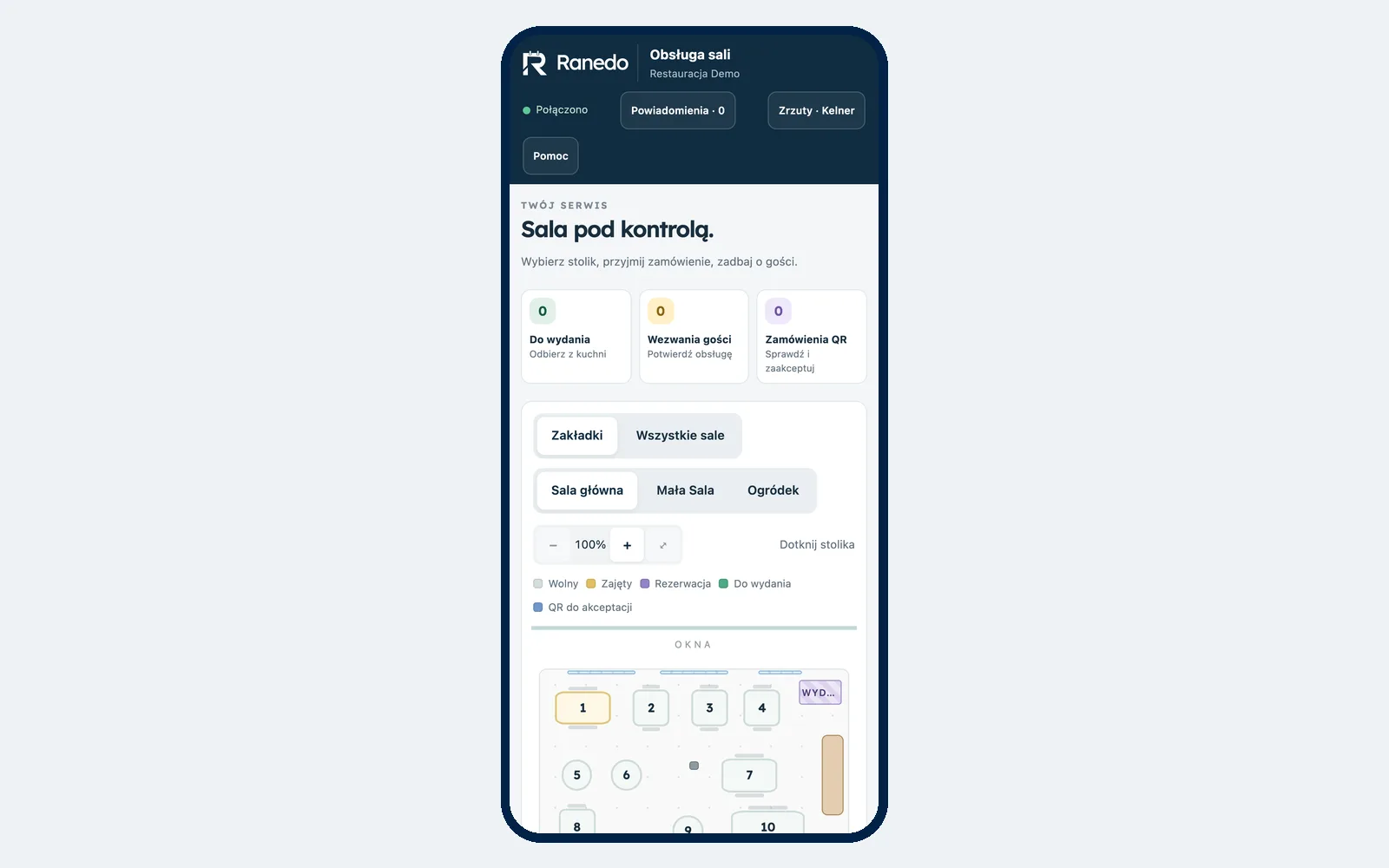
A floor plan lets you see more than a table number
With a few tables, memory is enough. With a larger dining room, the situation gets harder, especially when some tables are reserved, others are already taken and two groups want to combine seats.
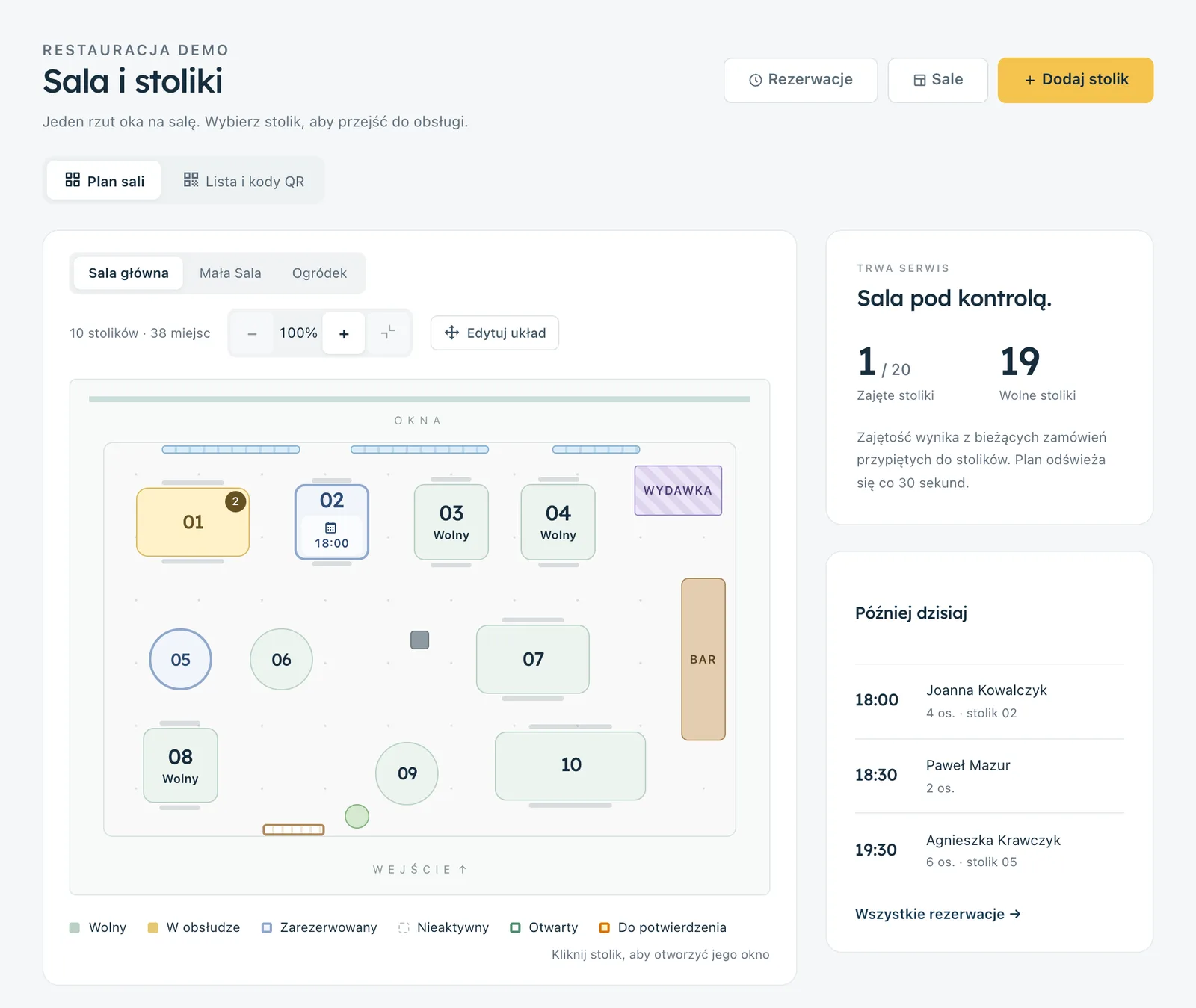
A digital floor plan can show the current state of the tables. The waiter doesn't have to remember whether a table is free, taken or tied to a table reservation.
Example: guests arrive earlier than planned, take two neighboring tables and ask to merge them into one check. Instead of keeping two slips of paper and trying to reconcile them later, staff can arrange the tables accordingly in the system.
The order can reach the kitchen without a trip back to the register
The mobile waiter screen shortens the path of information. The waiter picks a table, adds dishes, variants and notes, and then passes the order on.
That way, after each visit to a table, they don't have to go back to one specific station just to retype the contents of a notepad.
This matters especially in:
- venues with a large dining room,
- outdoor dining areas,
- restaurants on several levels,
- venues where the register is far from some of the tables,
- peak hours.
This doesn't mean the waiter stops walking between the dining room and the kitchen. They still have to serve guests and deliver dishes. What goes away is part of the walking done only to retype an order.
The kitchen has to know which table a dish is for
In a classic setup, a slip may include the table number, but if tickets get shuffled or several orders look alike, it's easy to get confused at the pass.
Shared information about the order and the table helps connect the dining room with the kitchen. When a dish is ready, staff should know which table it belongs to.
The fewer extra questions like "who is this pasta for?" come up at the pass, the easier it is to keep order during rush time.
If you want to organize the kitchen's own workflow in more detail, see also the article on the KDS kitchen screen instead of paper tickets.
A finished dish should come back to the waiter as information
Mobile dining room service makes sense when information flows both ways.
The waiter passes the order to the kitchen, but later also has to know that a specific dish is ready for pickup.
Example: four people are at a table. Two dishes are already prepared, and the kitchen is just finishing the next ones. If staff can see the order status, it's easier to decide when to go to the pass and what to carry to the dining room.
This isn't about the waiter staring at the phone all the time. The screen should reduce the number of extra questions and trips between stations, not create new duties.
Combining and moving tables stops being a memory problem
Guests don't always behave according to the original layout of the dining room. They switch seats, another person joins, two groups want to sit together or two tables need to be combined.
On paper, this means retyping numbers, moving checks around or remembering that the check for table 5 now also covers table 6.
In a mobile system, such changes can be recorded right away. That way the next staff member also sees the current situation instead of relying on word-of-mouth information passed a few minutes earlier.
The most chaos sometimes appears only at the check
Taking the order can go smoothly, but at the end the group says:
We'll pay separately. These two people together, dessert separately, and let's split the drinks equally.
If all items were written down together all evening with no way to quickly tell who pays for what, manual counting begins.
Split by items
Guests can indicate which dishes and drinks a specific person pays for. The waiter then assigns the right items to the right part of the check.
Split into equal parts
In another case, the group may simply want to split the total equally. The system can help calculate the right shares without dividing the amount by hand.
This is still a helper check for staff. The actual fiscal sale must be carried out on a fiscal register according to the venue's rules.
A phone doesn't mean technology completely replaces the waiter
The mobile screen shouldn't make staff look at the device more often than at the guests. It is a tool for recording information, not the main element of contact with the customer.
The waiter should still:
- greet guests,
- answer questions about the menu,
- recommend dishes, if that is part of the venue's standard,
- keep an eye on what's happening at the tables,
- react to problems,
- check whether guests need extra service.
The phone should shorten administrative tasks, not limit contact with the guest.
What about orders placed through QR?
If the restaurant also lets guests order through a QR code at the table, the waiter shouldn't need a separate app just to check that channel.
A QR order should go into the same service process. The waiter can accept it and then track it together with the other dining room orders.
That way some guests can order without waiting for service, while others still use the traditional conversation with the waiter.
You can find more about this model in the article on ordering through a QR code at the table.
Agree on team rules before rollout
A phone alone won't bring order to the dining room if staff don't know who is responsible for which tasks.
Before launching a mobile system, it's worth deciding:
- who opens a table,
- who can add to orders,
- who accepts QR orders,
- who moves or combines tables,
- who closes a table after payment,
- what to do when the internet is down,
- how the fiscal receipt is issued.
If a table stays open after guests leave, the next shift may see an outdated state of the dining room. That's why a rule as simple as "who closes the table" should be settled before the first service.
You need stable Wi-Fi and trained staff
A phone is convenient only when it works smoothly across the whole venue. Before rollout, check Wi-Fi coverage not next to the router, but in the places where the waiter actually works.
Test:
- the farthest tables,
- the outdoor area,
- other floors, if you have them,
- the areas around the kitchen and the pass,
- places separated by thick walls.
Staff also need short training. Every waiter should be able to open a table, add an order, enter a note, split a check, move a table and close it correctly.
Don't assume you can work fully without internet
If the internet connection drops, the system's capabilities may be limited. That's why the venue should have an emergency procedure.
In Ranedo, during a brief loss of internet, the waiter screen lets you do a limited set of things: serve dishes and answer guest calls. This should not be treated as full offline work. Taking new orders and other tasks require a working connection.
How does the waiter screen work in Ranedo?
The waiter screen is available on the Plus and Pro plans. It works in the browser on a phone or tablet, so the waiter can use the device while serving the dining room.
The Waiter role can be limited to its own screen, so the employee doesn't need access to the restaurant's whole admin dashboard.
Floor plan and table states
The waiter sees the floor plan and the current table states. They can open a table and start serving it without going back to the main station.
The screen also shows information related to table reservations. When reserved guests arrive at the venue, staff can mark their arrival.
Dishes, variants and notes
The waiter picks dishes from the menu, which can include photos. For items, you can choose variants and add notes meant for the kitchen.
That way information like "no onions" is linked directly to the specific item in the order.
Ready dishes and guest calls
The waiter screen is also used to handle ready dishes from the kitchen. The waiter can check which items are ready to serve.
If the venue uses QR orders, guest calls also appear on the screen, for example a request for staff to come over or for the check.
Accepting QR orders
Orders placed through the QR code at the table can be handled by the waiter together with traditional orders. There's no need to run a separate process just because the guest sent the order from their own phone.
Moving and combining tables
If guests switch seats or two tables need to be combined, staff can record the change in the system. This helps keep an up-to-date picture of the dining room for others on the team.
Splitting the check
The helper check can be split by specific items or into equal parts. A tip can also be included.
Ranedo does not replace a fiscal register and does not issue fiscal receipts. The settlement shown on the waiter screen is a helper, while the receipt must be issued on the fiscal register according to the venue's current procedure.
Promotions and the waiter screen
Promotions available in Ranedo do not work on the waiter screen. If the venue uses promotions in other channels, don't assume they will be applied automatically to an order entered by the waiter.
How do you roll out a phone instead of a notepad without chaos?
It's best to start with one full test before service.
- Prepare the floor plan and check the table numbers.
- Test internet coverage across the whole venue.
- Create a test table and add a few dishes.
- Add a variant and a note to an item.
- Check how the order looks on the kitchen side.
- Test serving a ready dish.
- Combine two tables and move them.
- Split a sample check by items and into equal parts.
- Check the process for closing a table.
- Agree with your team on a procedure for internet problems.
At first you can also keep the notepad as an emergency backup. The point isn't for staff to change all their habits on day one, but to learn the new flow of information.
When does a phone instead of a notepad make the most sense?
You'll usually notice the biggest difference where the waiter makes many trips between the tables and one central station.
Mobile service is especially useful when:
- the venue has a larger dining room or an outdoor area,
- the waiter serves many tables at once,
- guests often modify their orders,
- checks are regularly split,
- tables are combined or guests switch seats,
- the restaurant also uses QR and a kitchen screen.
In a very small venue with a few tables, a notepad may still be entirely enough. There's no point in rolling out technology just because it's available. It should solve a specific organizational problem.
Try the waiter screen in Ranedo
The waiter screen, floor plan, moving and combining tables, check splitting and QR order handling are available on the Ranedo Plus and Pro plans. A waiter can work on a phone or tablet without needing the full admin dashboard.
Check the plans or Ranedo plans or create an account and use the first month free, with all the features of the plan you choose.
Frequently asked questions
Does the waiter have to install an app on their phone?
No. The Ranedo waiter screen works in the browser on a phone or tablet.
Does an order from the waiter go straight to the kitchen?
Yes. An order entered by the waiter can go into the kitchen service process and, on the Plus and Pro plans, work with the KDS kitchen screen.
Can a check be split between several people?
Yes. The helper check can be split by selected items or into equal parts. The fiscal receipt is still issued on the fiscal register, though.
Does the waiter screen work without internet?
Only to a limited extent during a brief loss of connection. In Ranedo, the waiter can then serve dishes and answer guest calls. It is not a full offline mode.
Are Ranedo promotions applied on the waiter screen?
No. Promotions don't work on the waiter screen, so don't assume discounts from other channels will be applied automatically to an order taken by staff.
```