Technology
A KDS kitchen screen instead of paper tickets: how it works in a restaurant
A KDS kitchen screen keeps orders, allergens, and the pass in order. See how it works and when it is worth replacing paper tickets.
For years, the paper ticket was one of the simplest ways to pass an order from the dining room to the kitchen. The server takes the order, the printer spits out a slip, and the kitchen prepares dishes in sequence. The trouble starts when a dozen orders arrive in a short time, guest notes and allergens come in, along with delivery, pickup and dining room orders, and some dishes only need to be prepared in half an hour or so.
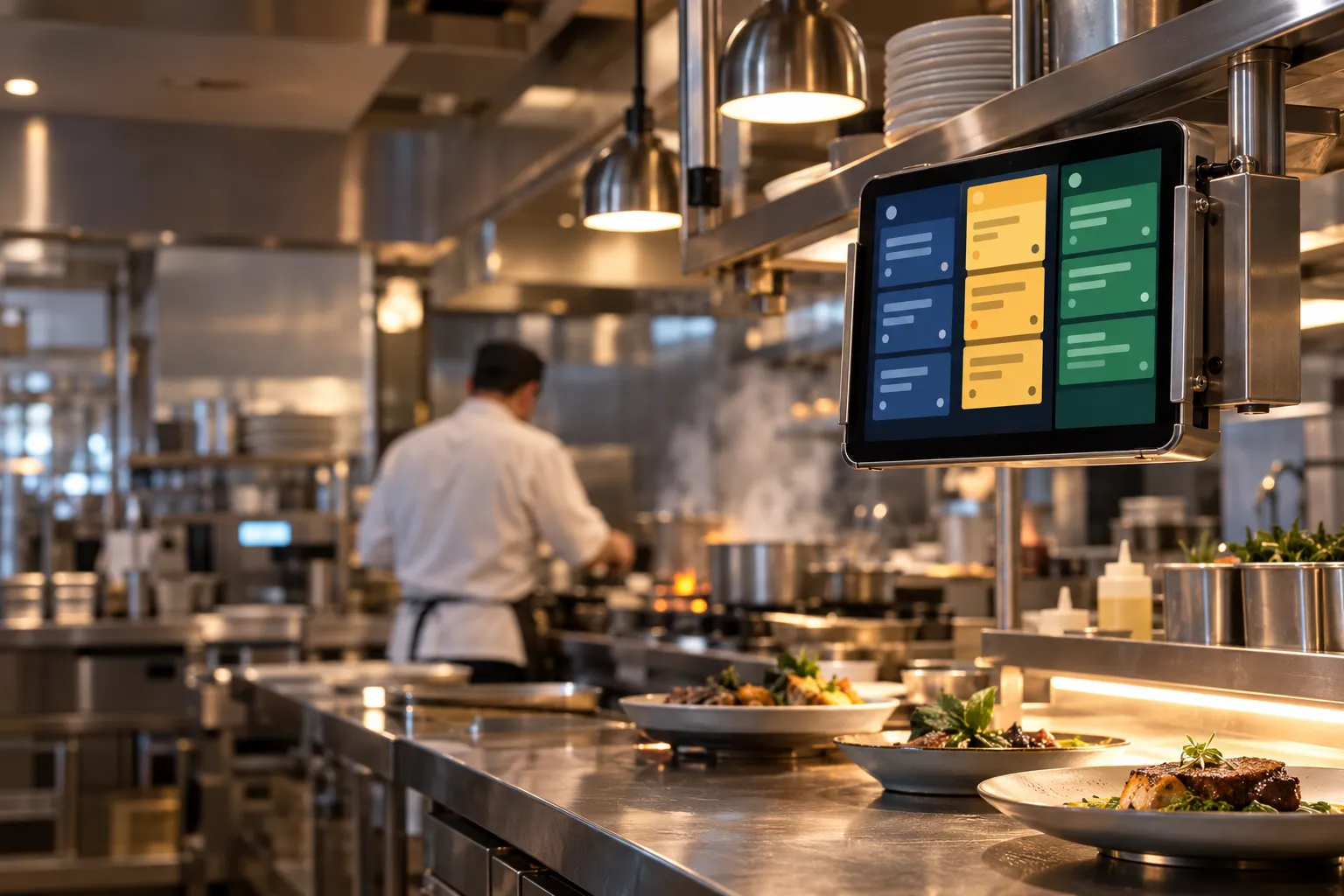
At that point, paper stops being just a simple tool. It can become one more thing the kitchen has to sort by hand. A KDS kitchen screen moves the same information onto a tablet or screen and lets staff work from one continuously updated queue of orders.
What is a KDS kitchen screen?
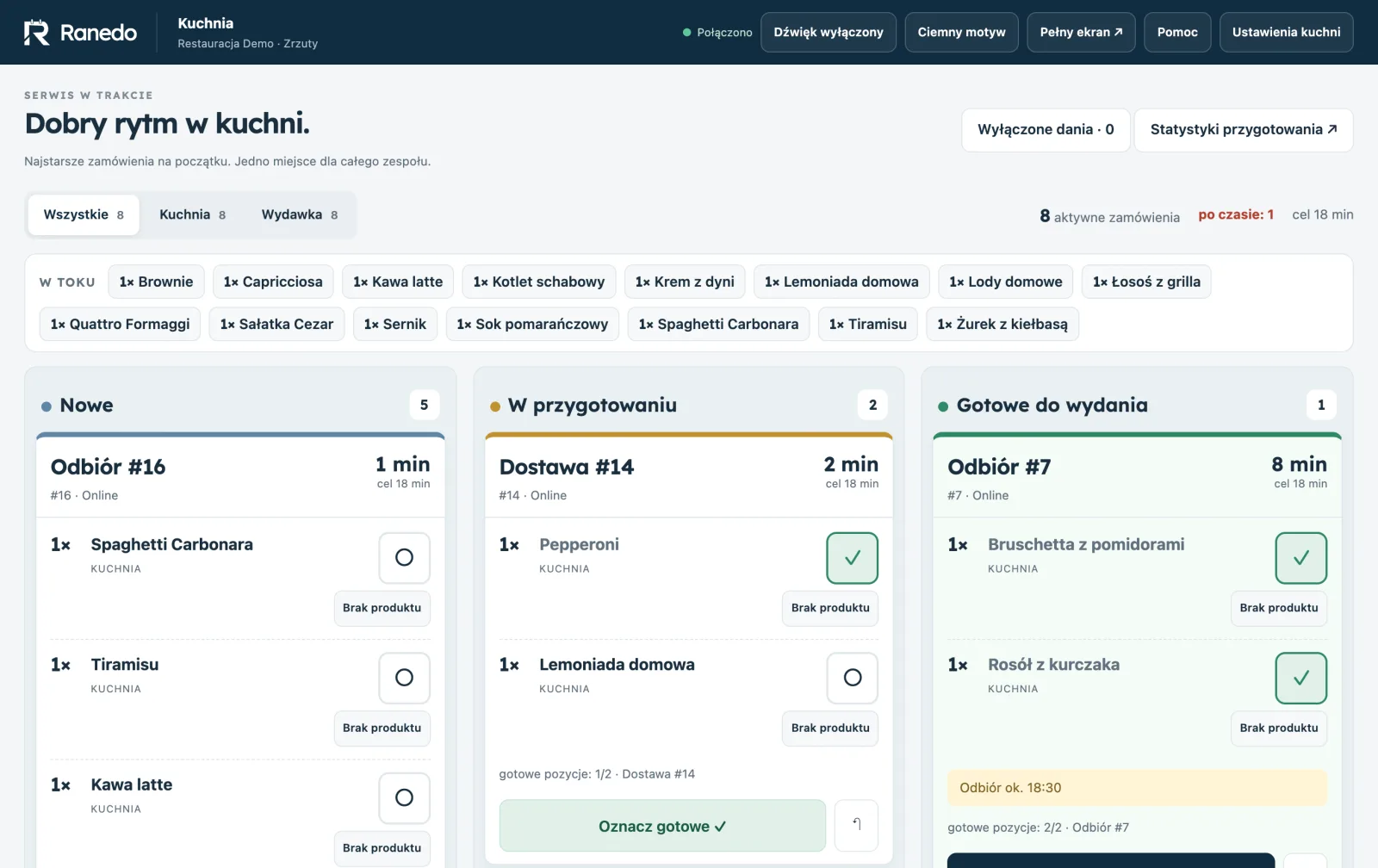
KDS, or Kitchen Display System, is a screen the kitchen uses to receive and handle orders. Instead of printing ticket after ticket, the system displays orders as clear cards. The kitchen sees what to prepare, in what order, and what stage a given order is at.
In a basic setup, an order can move through several states, for example:
- New : the order has just reached the kitchen,
- In development : the kitchen has started work,
- Ready to serve : all items are prepared and the order can go to the guest or to the pass.
So the most important change is not simply swapping a slip of paper for a screen. It is that the kitchen works from one queue, and an order's status can be updated without shuffling tickets, writing extra notes with a pen or hunting for the right slip.
What does KDS change during the busiest times?
The biggest difference shows when the venue is working under time pressure. Picture a Friday at 7:00 PM. Several tables in the dining room are occupied, someone is ordering for pickup, another order comes in from the website, and a guest at one of the tables places an order through a QR code.
With paper tickets, every new order means another slip. You have to keep track of the sequence, separate current orders from those planned for later, and make sure no ticket gets covered, stained or accidentally moved.
On the kitchen screen, all orders can appear in one queue. The oldest are visible at the top, so the cook does not have to decide which ticket to work on next.
Less manual sorting of orders
With paper, the order of work is often physical. Tickets hang on a rail, sit at the station, or get shuffled by the cook. When it's busy, even a small change, such as an order due only in an hour, means someone has to consciously put the slip in the right place.
A KDS lets you separate current orders from orders for later. An order scheduled for 8:30 PM doesn't have to take up space between the orders the kitchen is preparing right now.
Clearer notes and allergens
On a paper ticket, a note about an allergy, a changed ingredient, or an extra request can get lost among other items. In a digital system, this information can be shown right next to the specific order or item.
This doesn't release staff from following allergen and food safety procedures. The screen is a tool for passing on information, not a substitute for proper organization of work in the kitchen.
Paper ticket vs. kitchen screen: comparison
| Area | Paper ticket | KDS kitchen screen |
|---|---|---|
| Passing on the order | A printout from the printer or a handwritten slip | The order appears on the screen |
| Order of preparation | Set by the physical arrangement of tickets and by staff | Orders can be arranged by time |
| Order status | Usually requires moving or marking the slip | You can change the order's stage on the screen |
| Orders for later | You have to set them aside by hand and remember the right time | They can be shown as scheduled orders |
| Allergens and notes | Depend on how legible the printout and ticket layout are | Can be visible right next to the order |
| Out-of-stock items | The information has to be passed between staff | An out-of-stock item can be marked in the system |
| Supplies | Needs printer paper | Needs a device with a screen |
| Outage or no internet | Paper works independently of the network | Depends on the solution and how the system works |
Kitchen stations help with a larger menu
In a small venue, one screen may be enough. But if the kitchen is split into several stations, things look different. Pizza may be prepared in one part of the kitchen, hot dishes in another, and desserts or drinks in yet another.
In such a setup, a KDS can help organize the workflow by station. Instead of passing one ticket between several people, each station can work with the information that is relevant to it.
Example: an order contains a pizza, a salad, and a dessert. Individual items may need several people, but in the end the whole order should reach the pass as one piece. A digital order status makes it easier to check whether everything is ready.
Out-of-stock items: the information should arrive fast
One of the most problematic moments during service is when the kitchen learns that an item is gone, but the waiter can still sell it. As a result, the order is accepted, the ticket reaches the kitchen, and only then does the search for a substitute with the guest begin.
A kitchen screen can make it easier to pass on information about an out-of-stock item. You still need a clear procedure in the team: who marks the item as out, who can turn the dish back on, and how quickly the floor staff should be told.
Technology doesn't remove the need to set rules. But it can make sure the information doesn't depend solely on whether someone had time to tell all the waiters about the shortage.
How to roll out a KDS without a revolution in the kitchen?
Rolling it out doesn't have to mean that you take away all the printers in one day, throw out the paper, and tell your team to work only on tablets. A gradual transition to the new way of working is safer.
1. Start with one device
You don't always need specialized hardware to run a KDS. In many cases, a tablet placed where the kitchen can easily see it is enough. The position matters more than the device itself.
The screen should be:
- visible to the people preparing orders,
- placed so that it doesn't get in the way of work,
- protected from accidental spills or damage,
- plugged in or charged regularly.
2. Decide who changes the order status
If nobody is responsible for changing the status from “New” to “In preparation” and later to “Ready to serve”, after a few minutes the screen will stop reflecting what is really happening.
In a small kitchen, the person running the shift can do it. In a larger one, it's worth setting rules for each station or for the pass.
3. Test typical and unusual situations
Don't check only a simple order with one dish. Also test:
- an order with several dishes,
- an order with a note on an item,
- an order with allergen information,
- an order for a later time,
- a situation where one item ran out,
- several orders accepted one after another.
A good test is to simulate real traffic. Have several orders from different sources come in within a few minutes. Then you'll easily see whether the screen is set up well and whether the team understands the order of work.
What about a brief internet outage?
This is one of the first questions worth asking before you move from paper tickets to a screen. Paper doesn't need a network connection, so it's very resistant to technical problems. A digital system, on the other hand, needs a clear plan of action in case of problems with the internet or the device.
In Ranedo, the kitchen screen on the Plus and Pro plans can keep working on the last available data during a brief internet outage. However, you shouldn't treat this as a full replacement for a network connection. The venue should still have a simple emergency procedure: who checks the connection, how to handle new orders, and when to temporarily go back to paper or passing orders on by hand.
What does the kitchen screen look like in Ranedo?
In Ranedo, the KDS kitchen screen is available on the following plans: Plus and Pro plans. It can run on a tablet that pairs with the system using a code, without the standard user login.
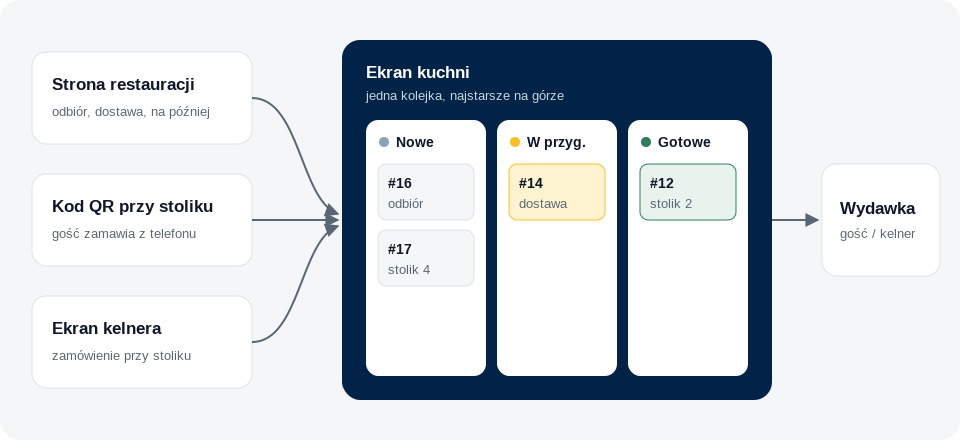
Orders are split into the columns New, In development and Ready to serve, and the oldest orders are at the top. The screen shows allergens and notes on items, separates orders for later, and has a dark mode for working in dim light.
Two features take the most load off the team at peak times:
- Stations — you assign dish categories to stations (e.g., grill, cold kitchen, bar), so each station sees only its own items, and the pass sees the whole order.
- Out-of-stock items — when an ingredient runs out, the cook taps “Out of stock” on the item and switches the dish off. It disappears right away from waiter ordering, from the QR menu, and from the restaurant website, and after a delivery you bring it back with one button.
It's also important that orders accepted through different channels can go into one service process. Orders from the restaurant website, QR orders at the table, and orders entered by the waiter all go to the same kitchen screen and use the same short order number. This way, the kitchen doesn't have to deal with separate numbering depending on where the order came from.
If you're also interested in how the floor staff work, see the article waiter screen on a phone instead of a notepad. For self-service, it's also worth reading how QR ordering from the table.
works. You'll find more about organizing work on the floor and in the kitchen in the section how Ranedo works.
When do paper tickets still make sense?
A KDS isn't a solution that every venue has to roll out regardless of its scale. Paper can still work well in a small spot with a short menu, one source of orders, and a small number of orders handled at the same time.
For example, if a venue mostly takes orders at the counter, the kitchen is a few meters away, and one person prepares all the items, a printed ticket may be enough.
Paper can also serve as an emergency procedure. Even after rolling out a KDS, it's worth knowing what to do if a tablet fails, if there are power problems, or if the system is unavailable for a longer time.
A KDS starts to matter more when the number of sales channels, orders, and people involved in preparing dishes grows. If the kitchen regularly sorts tickets, looks for lost slips, passes them between stations, or has to separately keep track of orders for later, a screen can bring order to these tasks.
A KDS won't fix poor work organization
A tablet alone won't solve a kitchen's problems if there are no set rules. If staff don't know who is responsible for starting an order, who closes it, and who controls the pass, a digital screen will just show the same chaos in a different form.
Before rolling it out, it's worth answering a few simple questions:
- Who takes responsibility for a new order?
- When do we change its status to “In preparation”?
- Who marks an order as ready?
- How do we handle orders for a specific time?
- What do we do when an item runs out?
- What is the procedure for problems with the internet or the device?
If these rules are clear, a KDS becomes a tool that supports the existing process instead of one more screen you have to operate.
Try the kitchen screen in practice
In Ranedo, the kitchen screen is available on the Plus and Pro plans, together with floor service, the waiter screen, QR orders, and other features related to running a venue. You can check the available plans or create an account and use the first month free, with all the features of the plan you choose.
Frequently asked questions
Does a KDS completely replace the ticket printer?
It can take over the main role in passing orders to the kitchen, but many venues keep a simple paper procedure for emergencies. The decision depends on the organization of a particular restaurant.
Does the kitchen screen work on a regular tablet?
In Ranedo, the KDS can run on a tablet. The device pairs with the system using a code, without the standard login.
Are orders from the waiter and from the internet visible together?
In Ranedo, orders from the restaurant website, from QR, and entered by the waiter go to the same kitchen screen and use the same short order number.
What happens to an order scheduled for later?
KDS in Ranedo supports orders for later, so the kitchen can tell them apart from orders that need to be prepared at the moment.
Does a KDS make sense in a very small restaurant?
Not always. If you have few orders, one station, and a simple way of serving, paper may be enough. A KDS is especially useful when the number of orders, sales channels, and people working on them grows.